The Answers Quality menu
The Answers Quality menu helps business teams measure and improve the quality of the bot answers, in particular the answers generated by the RAG. It provides two tools:
- Evaluations: humans review and grade a sample of real (or test) conversations.
- Datasets: a fixed list of questions is replayed against the bot, so that runs can be compared after a change of settings, prompt or documents.
To access this menu, you need the botUser role (more details on roles in security).
Evaluations
An evaluation sample is a set of dialogues whose bot answers are reviewed one by one.
Creating a sample
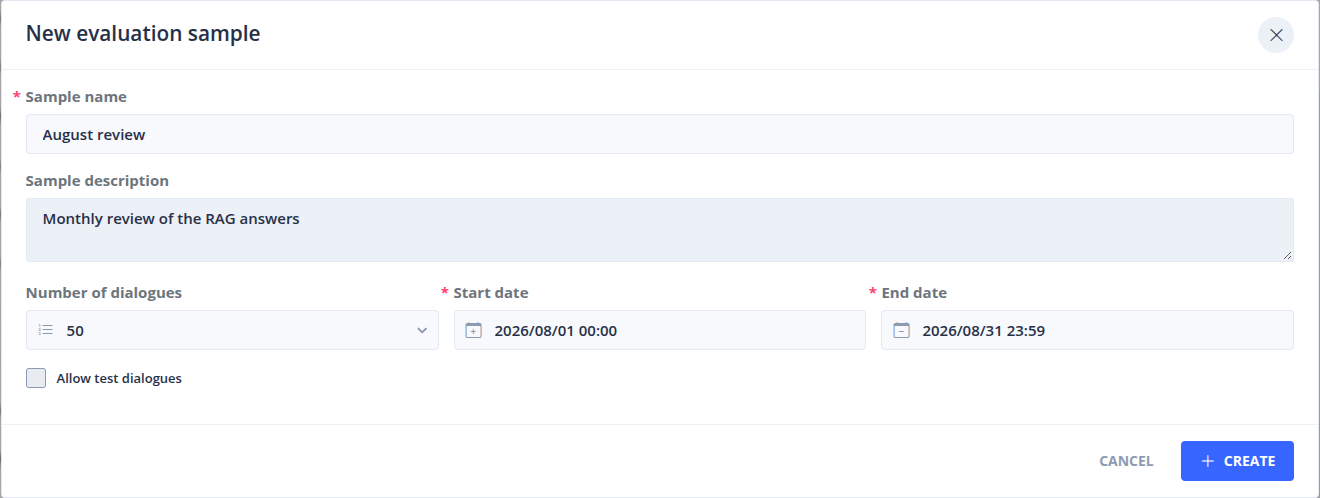
Click on NEW SAMPLE and fill in:
- the Sample name and an optional Sample description,
- the Number of dialogues to randomly select,
- the period covered, with a Start date and an End date: only dialogues created during this period are selected,
- Allow test dialogues: whether dialogues created from Tock Studio tests can be selected.
A sample can also be created from a dataset run.
The list of samples shows, for each sample, its type (random or generated from a dataset run), its state (In Progress or Validated), its positive score, its number of dialogues and answers, and who created and validated it.
Evaluating the answers
Open a sample to review its dialogues. For each bot answer:
- evaluate it positively (thumb up),
- or evaluate it negatively (thumb down) and choose a reason:
- Question not/misunderstood
- Inaccurate answer
- Incomplete answer
- Incomplete sources / documents
- Obsolete sources / documents
- Business lexicon problem
- Wrong answer format
- Hallucination
- Other
The progress bar shows the number of evaluated answers, and the positive / negative evaluations. The sample details give the period covered, the number of requested and actual dialogues, the total number of dialogues recorded for the bot during the period, and the resulting coverage rate.
Validating a sample
Once all the answers are evaluated, click on Validate and add an optional comment. A validated sample can no longer be modified. It can be exported as a PDF report with Export.
Dialogues are subject to the data retention policy of the platform. If some dialogues of a sample have been purged, a warning is displayed and the sample can no longer be validated.
Datasets
A dataset is a named list of questions, each with an optional ground truth (the expected answer). Running a dataset sends every question to the bot and records the answers, so that two runs can be compared question by question: typically before and after a change of the RAG settings, of the prompt or of the indexed documents.
Creating a dataset
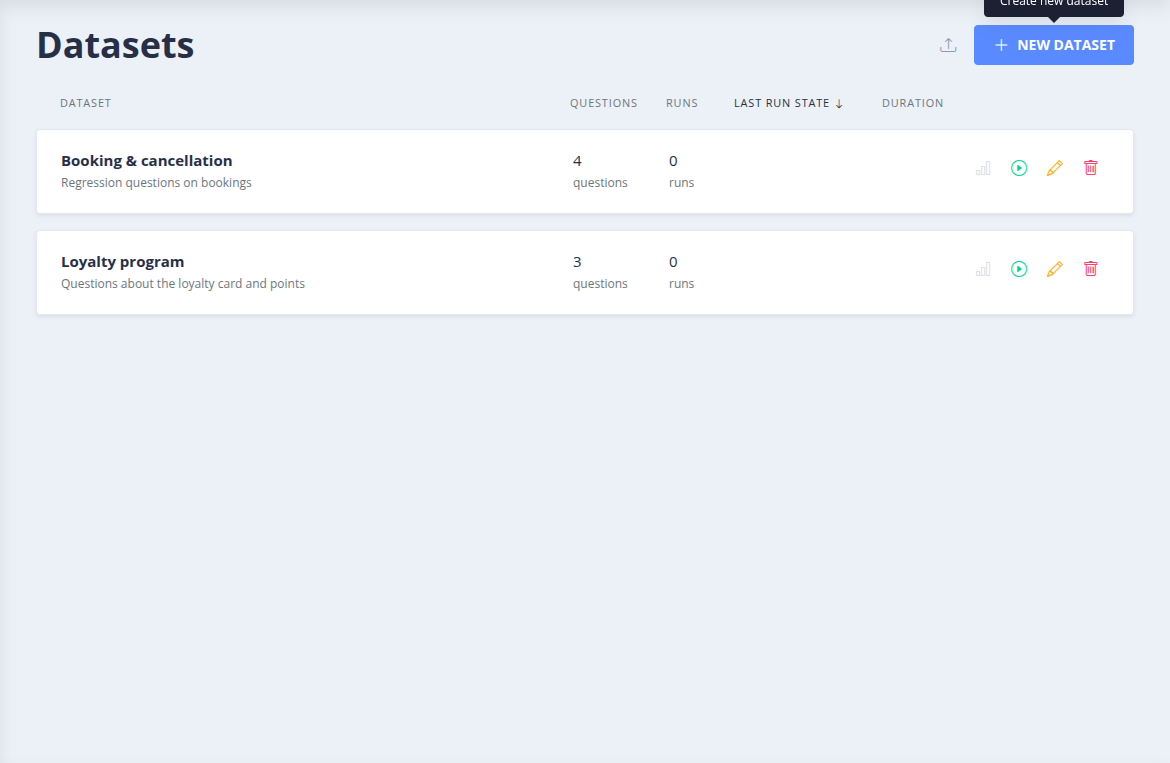
Click on NEW DATASET, then enter a name, an optional description and the questions, with an optional ground truth for each of them.
A dataset can also be imported (button Import a dataset):
- from a JSON file containing a
name, adescriptionand an array ofquestions, each with aquestionand agroundTruthfield, - or from a CSV file with a
questioncolumn and an optionalgroundTruthcolumn: download the CSV template from the import dialog to get the expected columns. The name and description are then entered in the dialog.
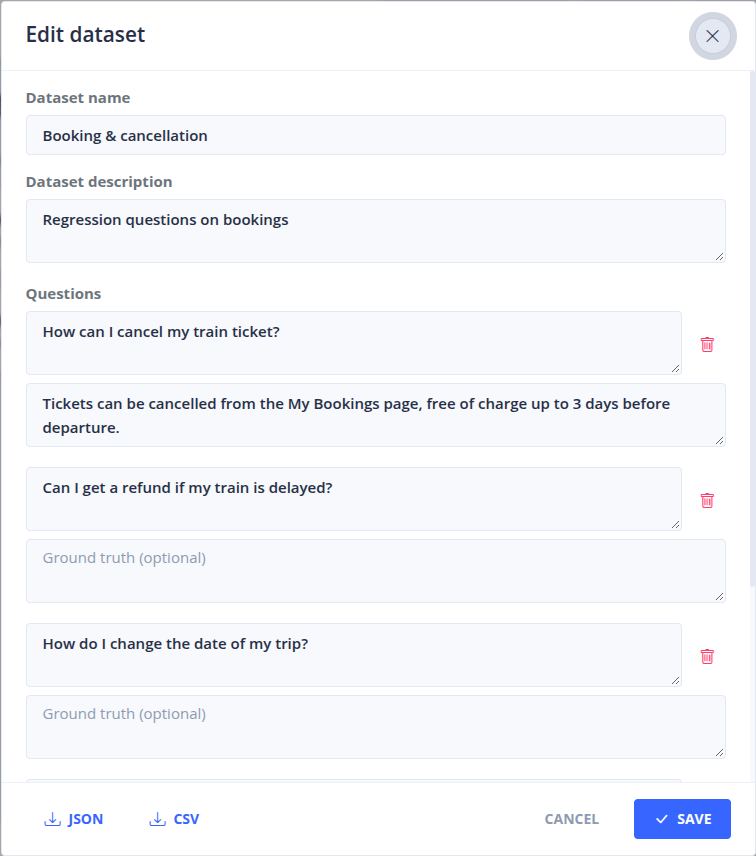
From the edition screen, EXPORT DATASET exports the full dataset as JSON, or its questions only as CSV.
Run results are matched by question. Rephrasing a question slightly is fine, but changing its meaning makes runs compare different things: in that case, delete the question and add a new one.
Running a dataset
Click on Run dataset. Each question is sent to the bot with the test connector, as if typed in the Test menu, with the debug mode and the source contents enabled. Questions are processed one by one, in the background: the list shows the progress of the active run, which can be cancelled.
Running a dataset requires a test configuration for the bot. Only one run can be active for a dataset, and a dataset cannot be edited or deleted while a run is active.
A status icon appears at the left of each dataset and run; hover over it to see its state (and the latest run date for a dataset).
The running icon rotates while a run is active, unless reduced motion is enabled in the system settings.
While a run is active, the dataset summary groups its duration, a progress bar and the processed-question count (for example, 8 / 20). The count includes execution failures.
The arrow in the leading header sorts datasets by latest run date.
For each run, the list of runs shows its dates, duration and state, and counts the questions:
- Completed and Failed (execution failures or technical errors),
- Intent: answered by intent detection,
- Found in context: answered by the RAG with relevant documents,
- Not found in context: handled by the RAG without relevant documents.
A run that ends with some failed questions is still completed: failed questions are reported in the run statistics.
The Duration column displays the average RAG duration per measured response next to the total run duration,
for example 00:02:10 (6.4 s/q). Hover over the average to see how many questions have a measurement.
This average uses the orchestrator's ragDebug.duration, including responses not found in context; failures,
non-RAG responses and missing or invalid measurements are excluded. It measures the RAG chain, not only the final LLM call.
After a dataset retry, only the successful attempt contributes to this average; earlier attempts remain part of the total run duration.
Durations are stored with question results and remain available after dialog expiration. Older runs without a recorded duration
show only the total run duration; opening their answers can recover available durations from dialogs for subsequent visits to the run list.
The Not found in context percentage is calculated over all questions in the dataset, including failed questions. It remains visible when some questions fail; read it alongside the failure count.
For new runs, answer-type and RAG-status counts are stored with each question result, so they remain available after the underlying dialogs expire. Older runs acquire these counts when their answers are read, if the dialogs are still available. Answer details and evaluation samples still depend on dialog retention.
Comparing runs
In the run list, the Note column after Duration lets you add a short label such as “Compressor OFF” or “Compressor ON”. Click the note to edit it, then press Enter or click the check mark to save; Escape or the cross cancels editing. Notes are optional, limited to 200 characters, and editable during or after a run. Save an empty note to remove it. The note is also displayed under Run A and Run B and in the run selector tooltips during comparison.
Open a run to display its answers. By default, the screen compares the latest completed run (Run A) with the previous completed run (Run B), question by question: answer text, answer type (RAG or intent) and sources. Sources that were added, modified or removed between the two runs are highlighted.
The list's comparison button compares the selected run with the latest completed run, even while another run is in progress. Comparison requires two distinct completed runs; when only one is available, the detail view displays that run alone.
The Show only diffs filters display only the questions whose status, sources, answer type or wording changed.
The settings and prompts links show the RAG settings and prompts used by each run, and compare them between the two runs.
The Compression Settings tab shows the configuration saved when each run was launched, including whether compression was enabled and the provider's parameters, with differences highlighted. Later changes to the bot's configuration do not alter this snapshot. Older runs display a message when compression settings were not recorded; this does not mean compression was disabled.
Creating an evaluation sample from a run
From the list of runs, Create an evaluation sample based on the results of this run creates an evaluation sample containing the answers of the run, so that they can be graded by humans.
Configuration
The following properties of the Tock Studio backend (tock/bot_admin) configure datasets:
| Environment variable | Default | Description |
|---|---|---|
tock_datasets_max_questions |
200 |
Maximum number of questions in a dataset |
tock_dataset_run_worker_poll_interval_ms |
2000 |
Interval between two checks for new runs to process (ms) |
tock_dataset_run_worker_max_retries |
0 |
Number of retries of a question after a technical error |
 Chat with Tock