The Language Understanding menu
The Language Understanding (or NLU) menu allows you to create, modify, and enrich conversational models: declare intentions and entities, qualify sentences, etc. (see Concepts for more information).
In this page, the details of each tab are presented. See also Building conversational models for a more usage-driven presentation.
The New sentence tab
This screen allows you to enter sentences and check which intent/entities are detected.
Enter a sentence and validate to see the detection resulting from the conversational model (in practice: how the bot interprets the sentence). The following are then displayed:
- Intent: the recognized intent
- Language: the detected language
- The score(s) returned by the algorithms (according to their level of confidence on the intent and on any entities)
- If applicable, each entity detected with its role/type and score
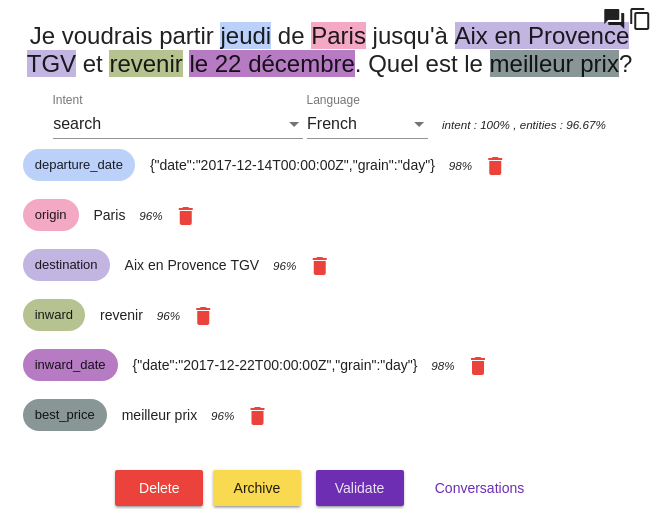
It is possible to modify all the elements detected from this screen:
- To modify the intent (or even create a new one on the fly) or the detected language, use the fields / selection lists under the sentence
- To delete an entity, use the button next to the entity score
- To add an entity, select a block of words in the sentence with the mouse then specify its role/type.
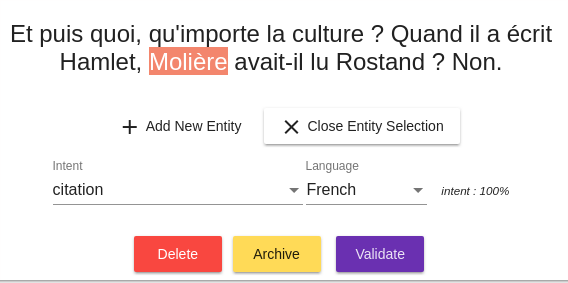
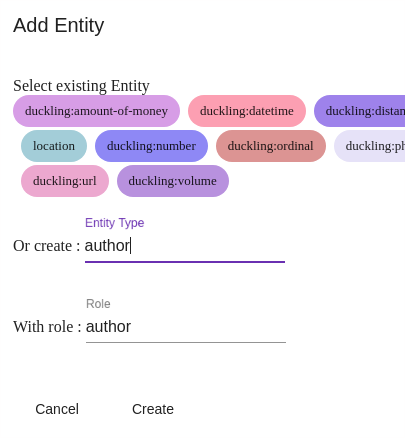
Note: if you have enabled this option at the application/bot level, it is possible to declare sub-entities. You will learn more in Building conversational models.
The following buttons and commands are available for the sentence as a whole:
- Delete: delete the sentence
- Unknown: qualify the sentence as an unknown intent (default response)
- Validate: confirm the detected intent/entities and save the sentence in the model (ultimately causing a reconstruction of the model, its corpus being enriched with this sentence)
Other links are available to display conversations containing this sentence, copy the content of the sentence, create a journey from this sentence.
The Inbox sentences tab
This tab shows (with pagination and some display options) all the sentences received by the NLU model with the detected intents/entities/language/scores.
These sentences can come from real users regardless of the channels, from an entry in the New sentence tab or from a conversation via the Test > Test page in Tock Studio.
When you are testing from an external channel, do not hesitate to click on the Refresh button (top left of the screen) to refresh the list of sentences.
The buttons and commands under each sentence are identical to those in the New sentence tab (see above).
The Search sentences tab
This screen allows you to search through all the sentences: Inbox sentences but also qualified sentences saved in the model.
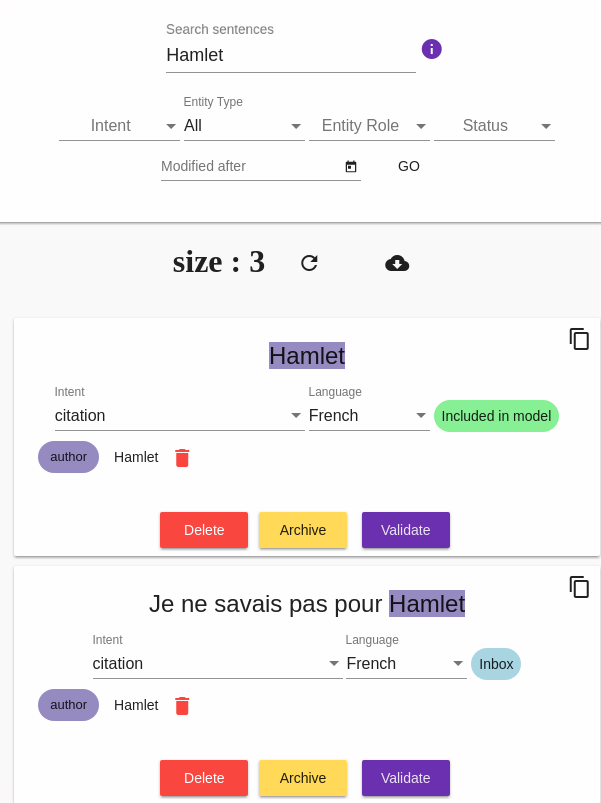
The Unknown sentences tab
This screen allows you to browse sentences whose intent has not been recognized (unknown intent).
The Intents tab
This screen lists and manages the intents. See Intents.
The Entities tab
This screen manages the entity types: predefined values, sub-entities, obfuscation... See Entities.
The Sentences logs tab
This screen displays the complete log of sentences received and allows you to go back to conversations (i.e. all the sentences received and bot responses for a user).
Note: unlike the Inbox sentences view, the Sentences logs show the sentences received even when they already exist identically in the model (in this case, the model and algorithms are not even queried, the response being known).
 Chat with Tock