The Stories & Answers menu
The Stories & Answers menu allows you to build the journeys (stories) of the bot and their answers.
On this page, the details of each screen are presented. See also Create your first bot with Tock Studio for an example of creating a story, and Build a multilingual bot for the Answers screen.
The New Story screen
A story associates one or more intents with an answer. There are three types of stories:
- Simple: one or more answers, in text or media messages
- Scripted: answers written in Kotlin directly in Tock Studio (requires the
kotlin_compilercomponent) - Simple (Faq): the stories created by the FAQs screen
Create a simple answer
The guide Create your first bot with Tock Studio presents an example of creating a story with a simple answer.
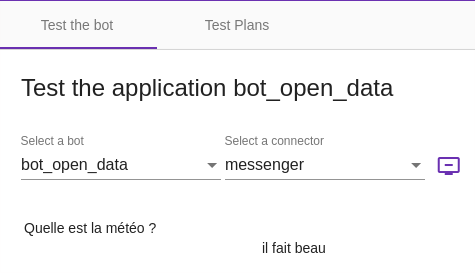
The Test > Test menu then allows you to quickly check the behavior of the bot on this story.
Creating complex answers
It is possible to indicate several answers and also "rich" answers called Media Message.
This allows, regardless of the channel, to display images, titles, subtitles and action buttons.
Mandatory entities
It is possible, before displaying the main answer, to check if certain entities are filled in, and if not, to display the appropriate question.
The corresponding option is called Mandatory Entities.
For example, if the bot needs to know the destination of the user and the user has not indicated it yet, the bot asks "To which destination?".
Actions
Actions are presented as suggestions, when the channel allows it.
It is possible to present a tree of actions to build a decision tree.
The All stories screen
This screen allows you to browse and manage the stories created.
These can be stories configured in Tock Studio (ie. with the New Story screen) but also stories declared programmatically via Bot API. To see the latter, uncheck the Configured stories only option.
The FAQs stories screen
This screen manages the questions / answers of the bot: see FAQs.
The Answers screen
This screen allows you to modify the answers of the bot, according to several criteria:
- The language (this is called internationalization or i18n)
- The channel (text or voice), that is to say in practice the connector
- According to a rotation: it is possible to record several texts for the same label in the same language on the same connector - the bot will then randomly answer one of these texts, then perform a rotation so as not to always answer the same thing.
This makes the bot more pleasant by varying its answers.
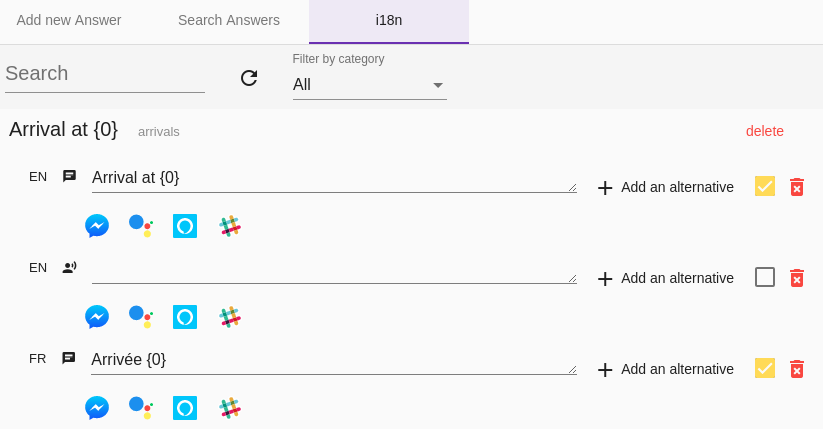
See also Building a multilingual bot for the use of the Answers screen, and Internationalization for the development aspects on this topic.
The Documents screen
This screen lists the files and links used in the media messages of the stories (images, audio and video files, links...), with the story that uses them. You can filter them by type and extension, and open the story to edit them.
The Rules screen
This screen contains the following sections.
Tagged Stories
Stories that have a particular function, depending on their tags:
- Bot disabling stories, tagged with DISABLE
- Bot enabling stories, tagged with ENABLE
- Stories for which only the entities of the sub-steps are checked to decide if the user stays in the story
- Stories for which only the intents of the story are checked to select an action from an entity
Story rules
Rules applied to the stories, possibly for a single configuration of the bot:
- Activation: enables or disables a story
- Redirection: redirects a story to another story
- Ending: runs another story after the end of a story, for instance a satisfaction question (see FAQs)
Features
This section allows you to manage features that can be enabled or disabled from the interface (feature flipping).
 Chat with Tock