The Test menu
The Test menu allows you to test a bot directly in the Tock Studio interface, as well as to manage automatic test plans.
The Test screen
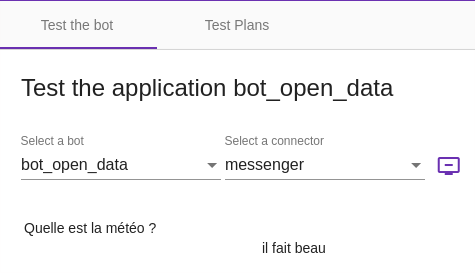
Via this menu, you can talk directly to the bot by simulating different languages and connectors.
This allows you to quickly and easily test a bot in the Tock Studio interface, without having to use external software and channels.
The interface remains minimal because the goal is to quickly test the bot, not to obtain a real user interface or even a rendering identical to that of a particular connector.
Depending on the type of messages returned by the bot and the connector used, the rendering in the Test > Test screen may not be satisfactory. Indeed, for perfect compatibility with this screen, the connectors must respect certain implementation rules.
If you notice that a certain type of message for a given connector is not well managed in this interface, do not hesitate to raise a issue GitHub.
To talk to a bot in the interface, once in Test > Test :
- Check the language (top right of the interface)
- Select an application/bot
- Select a connector to emulate
- Start typing sentences...
Here is another example with a conversation including rich components of the Messenger connector, with their rendering in the generic Tock Studio interface :
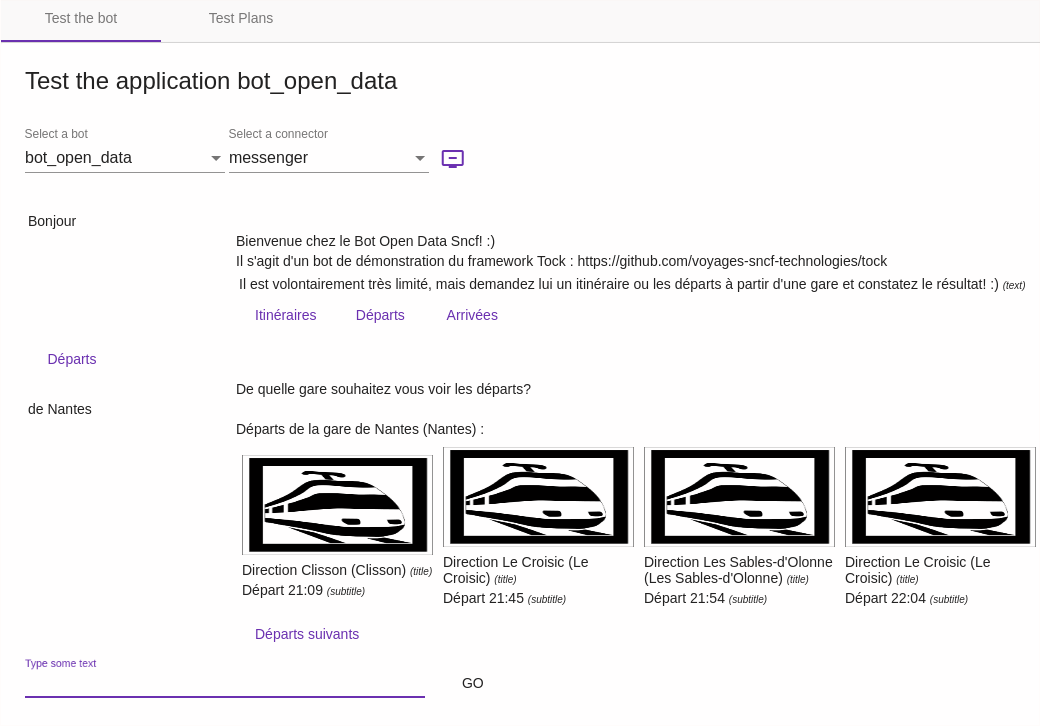
For each message exchange with the bot, the detected language is indicated. By clicking on View Nlp Stats you can see the details of the model's response: intent, entities, scores, etc.
The Test Plans tab
This tool allows you to create and track the execution of automated conversation tests, in order to automatically and regularly check the non-regression of the bot.
- Create a test plan with the Create a new Test Plan button, and give it a name.
- Add conversations to it from Analytics > Dialogs: the Add dialog to Test Plan button of a dialog adds it to the selected plan. A good practice is to add a dialog once its answers have been checked.
- Launch the plan with Launch: Tock replays the user sentences of each conversation and compares the bot answers with the recorded ones.
Each execution shows the number of conversations and errors. For a failed conversation, Display details shows the expected dialog and the last answer actually received.
Test plans can also be run from Xray (JIRA): see the tock_bot_test_xray_url property and the
Xray tests module.
 Chat with Tock